


Search
Ultimate Guide to Replacing Your MacBook Keyboard
Feb 6
3 min read
A faulty keyboard can turn your MacBook from a powerful tool into a frustrating obstacle. Whether keys stick, fail to register, or the entire keyboard stops working, replacing it can restore your device’s full functionality. This guide walks you through everything you need to know about replacing your MacBook keyboard safely and effectively.
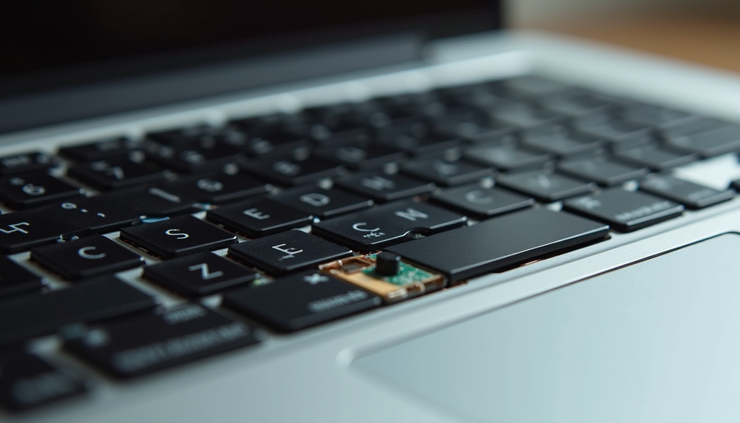
Understanding When You Need a Keyboard Replacement
Not every keyboard issue requires a full replacement. Sometimes cleaning or minor repairs can fix problems. However, consider replacing the keyboard if you notice:
Multiple keys are unresponsive or registering incorrect inputs.
Keys are physically damaged or missing.
The keyboard has liquid damage causing erratic behavior.
The keyboard backlight is malfunctioning and cannot be fixed by software resets.
The keyboard flex cable is damaged or disconnected.
If your MacBook is under warranty or AppleCare, check with Apple support first. They may offer a free or low-cost repair. For out-of-warranty devices, replacement can be a cost-effective alternative to buying a new laptop.
Tools and Materials You Will Need
Replacing a MacBook keyboard requires precision and the right tools. Here’s what you should prepare before starting:
Pentalobe screwdriver (specific to MacBook screws)
Torx screwdriver (usually T5 or T6 depending on model)
Plastic opening tools or spudger to avoid damaging components
Tweezers for handling small screws and connectors
Replacement keyboard compatible with your MacBook model
Anti-static wrist strap to prevent electrostatic discharge
Soft cloth or mat to protect your workspace and device
Make sure you have a clean, well-lit area to work in. Organize screws and parts carefully to avoid losing them.
Identifying Your MacBook Model
MacBook keyboards vary by model and year. Using the wrong replacement part can cause damage or fail to fit. To find your MacBook model:
Click the Apple menu and select About This Mac.
Note the model name and year (e.g., MacBook Pro 2017).
Use this information to order the correct keyboard replacement.
Some models have integrated keyboards with the top case, meaning you replace the entire top assembly. Others allow keyboard replacement alone. Confirm your model’s repair ability before purchasing parts.
Step-by-Step Keyboard Replacement Process
1. Power Down and Disconnect
Turn off your MacBook completely. Disconnect the charger and any peripherals. Ground yourself using an anti-static wrist strap.
2. Remove the Bottom Case
Use the pentalobe screwdriver to remove the screws securing the bottom case. Keep track of screw sizes and locations.
Gently pry the bottom case off using a plastic opening tool. Avoid using metal tools that can scratch or damage the chassis.
3. Disconnect the Battery
Locate the battery connector and carefully disconnect it to prevent power running through the device during repair.
4. Remove the Keyboard Assembly
Depending on your model, this step varies:
For models with a separate keyboard, disconnect the keyboard ribbon cable from the logic board.
For models with integrated keyboards, you may need to remove the entire top case. This involves disconnecting multiple cables and screws.
Refer to your specific MacBook repair guide or manual for detailed instructions.
5. Install the New Keyboard
Align the new keyboard carefully. Connect the ribbon cable securely to the logic board.
If replacing the top case, ensure all cables are reconnected before securing screws.
6. Reassemble Your MacBook
Reconnect the battery. Replace the bottom case and tighten screws in their original positions.
7. Test the New Keyboard
Power on your MacBook and test every key. Check backlighting and special function keys.
If keys do not respond, double-check ribbon cable connections and ensure the keyboard is compatible.
Tips for a Successful Replacement
Label screws and parts as you remove them to avoid confusion.
Take photos during disassembly to help with reassembly.
Work slowly and carefully to avoid damaging delicate components.
Avoid touching logic board contacts with bare hands.
Use genuine or high-quality replacement parts to ensure durability.
Consult video tutorials for your specific MacBook model for visual guidance.
When to Seek Professional Help
If you feel unsure about opening your MacBook or encounter unexpected issues, professional repair services can help. They have the tools and experience to replace keyboards safely without risking further damage.
Professional repair may also be necessary if your MacBook has additional damage like a swollen battery or logic board issues.
Maintaining Your MacBook Keyboard
After replacement, keep your keyboard in good condition by:
Cleaning regularly with compressed air or a soft brush.
Avoiding eating or drinking near your MacBook.
Using a keyboard cover to protect against dust and spills.
Addressing sticky or unresponsive keys early before they worsen.


Comments